What you are actually pasting
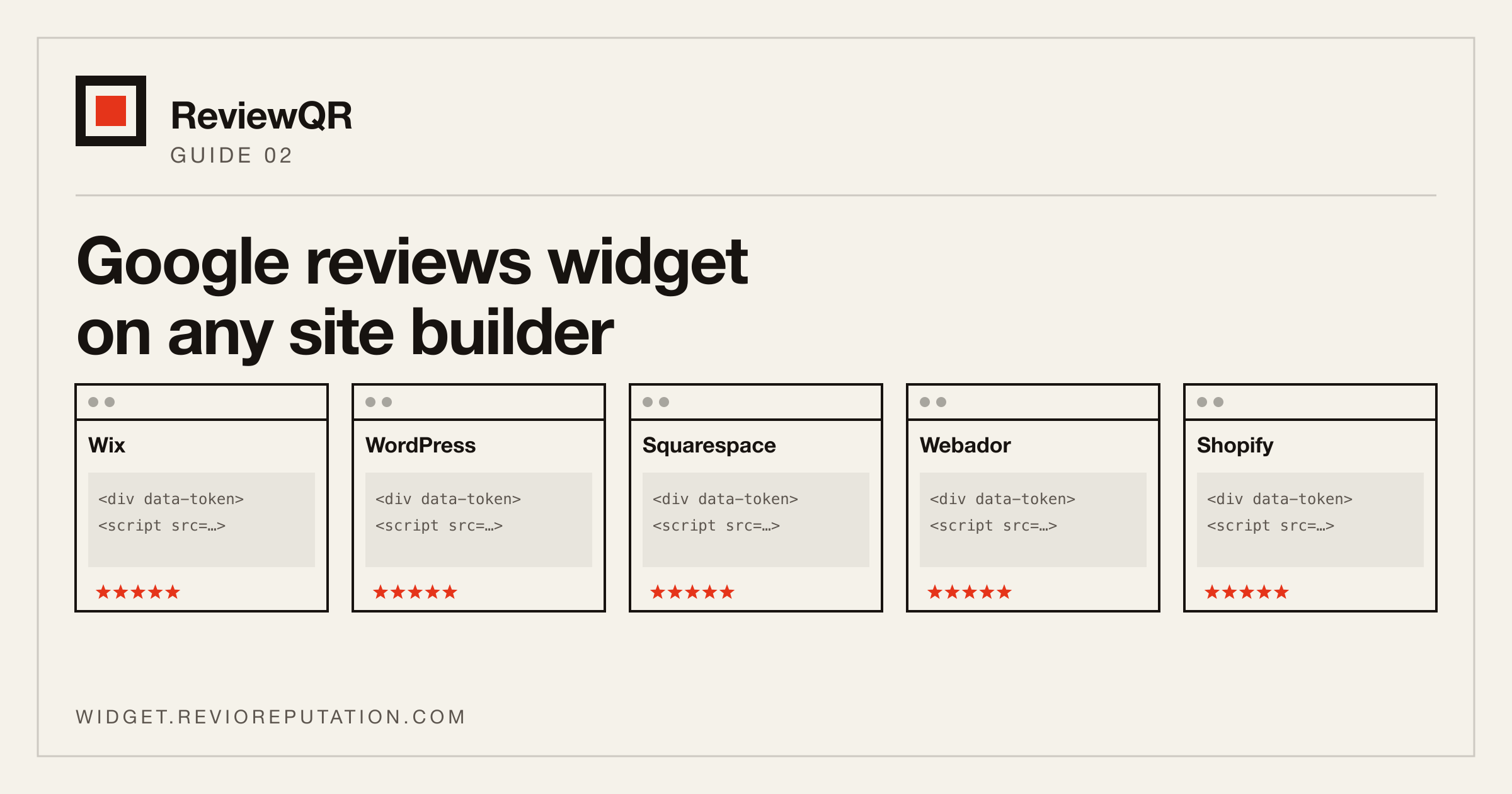
Every embeddable reviews widget, ours included, comes down to two lines: a placeholder element with an identifier, and a script that fills it. Something of this shape:
<div data-token="…"></div>
<script src="https://…/widget.js" async></script>
That is all a site builder has to accept. The whole question of “does it work on Wix” is really “where does this builder let me put raw HTML, and does it run the script”. Every builder below does; they just hide the door in different places. Two things to keep in mind before you start:
- Paste the whole snippet, unchanged. The placeholder and the script belong together; the script looks for the placeholder by its identifier. Splitting them across two blocks, or letting an editor “clean up” the attributes, is the usual reason a widget shows nothing.
- Use the builder’s HTML or code element, not the text editor. A text editor escapes the angle brackets and you get the code printed on the page as text.
Wix
In the editor, Add Elements → Embed Code → Embed HTML (the older editor calls it “HTML iframe”). Choose Code, paste the snippet, apply.
The thing to know about Wix: the HTML element is a sandboxed frame. The widget renders inside it fine, but the frame does not grow with its content — you set the element’s height by dragging it, and a carousel that needs more room gets clipped. Make the element taller than you think, publish, and check on a phone, because the frame width is fixed too and a widget laid out for desktop can end up scrolling sideways in a narrow box. A list or badge layout is the least fussy inside Wix for exactly that reason.
WordPress
Block editor: add a Custom HTML block where you want the reviews and paste. Classic editor: switch the editor from Visual to Text (or Code) before pasting, or the visual editor will strip the script tag. Elementor has an HTML widget; Divi has a Code module; both do the same job.
Two WordPress-specific traps. Some security plugins strip <script> from
post content for non-administrator authors — if the snippet vanishes on save, that is
why, and pasting it as an administrator or in a widget area fixes it. And a page cache or an
optimisation plugin that “delays” third-party scripts will delay this one too;
that is usually fine, but if the reviews appear only after the visitor scrolls or clicks, add
the widget script to that plugin’s exclusion list.
Squarespace
Edit the page, add a block, choose Code. Leave it on HTML, make sure Display Source is off, paste, save. On the current plans a Code block runs scripts on the published site; on the trial it does not until you publish, which catches people checking the preview.
If you want the widget on every page — in the footer, say — use Settings → Advanced → Code Injection instead and put the snippet in the footer field. That needs a Business plan or above; the per-page Code block does not.
Webador, Jimdo, and the smaller builders
Webador has an HTML element in the sidebar — drag it onto the page and paste into the box. Jimdo calls it HTML/Widget. Both run scripts from the element, and neither wraps it in a fixed-size frame the way Wix does, so the widget takes the width of the column it sits in and grows to its content. Of all the builders on this page, these are the least trouble — the first customer site we ever saw our own widget on was a Webador site, and the whole installation was one paste.
Shopify
On a page: edit the page, click the <> (show HTML) button in the rich text editor, paste. In the theme, for the home page or a section: Online Store → Themes → Customize, add a Custom Liquid section (or a Custom HTML block, depending on the theme) and paste. Custom Liquid accepts plain HTML and scripts as-is.
Webflow, Framer, and hand-written sites
Webflow: an Embed element from the add panel. Framer: a Code Component or the page’s custom code settings. A hand-written site: anywhere in the body. There is nothing to work around on any of these; they are the reference case.
It is pasted and nothing shows — the checklist
- Is the code on the page as HTML, or as text? If you can read the angle brackets on the published page, it went through a text editor. Re-add it with the builder’s HTML element.
- Is the placeholder still there? View the page source and search for
data-token. If the script is present and the placeholder is not, the editor dropped it; paste both together in one block. - Are you looking at the published site? Several builders do not run scripts in their own preview.
- Is there a box, just an empty one? That is a Wix-style frame that is too small, or a widget with nothing to show yet — a brand-new listing, or a filter set so high that no review passes it.
- Does it show on desktop and not on the phone? Fixed-height frame again, or a column in the builder that collapses on mobile and takes the widget with it.
One thing that is the same everywhere
Whatever you paste, the number the widget prints should be the rating and count of your whole listing, not of the reviews it happens to show, and the reviewer’s name and the link back to Google should stay attached. Those are the two things that make an embedded review something a visitor can check rather than something you claim. The longer comparison covers why.
ReviewQR produces the two-line snippet above for your Google listing, in a layout you pick, in the colours of your site. It renders into its own shadow root, so your builder’s styles do not leak into it and its styles do not leak into your page — which is most of why the same paste works on all of the builders above. The free plan covers one location, no card.